
Apple has become a household name, not only for its iconic products but also for its commitment to user safety and privacy. As technology continues to evolve, so does the need for tools that help keep track of personal belongings. Apple offers a variety of tracking devices that make it easier for users to locate their lost or misplaced items. In this article, we'll walk through the steps of setting up an Apple tracking device and explore the privacy settings that users can configure for enhanced security.
What is an Apple Tracking Device?
An Apple tracking device is a small, wireless accessory that helps users locate personal items like keys, bags, and other everyday objects. Apple’s tracking devices utilize Bluetooth technology, making it easy to track items within a specific range. The tracking functionality is tightly integrated with the company’s ecosystem, which allows for seamless use across various Apple devices.
One of the most well-known tracking devices in the Apple lineup is the AirTag. However, there are also other solutions that offer similar functionalities, such as the Find My network. These devices can be attached to any item, allowing users to locate them using their Apple devices, including iPhones, iPads, and Macs.
Setting Up an Apple Tracking Device
Setting up an Apple tracking device is a simple process that involves syncing the device with your Apple ID and pairing it with the device you want to track. Below is a detailed guide on how to set up your Apple tracking device, specifically an AirTag.
Step 1: Unbox the Apple Tracking Device
The first step is to unbox your Apple tracking device. Whether it's an AirTag or another product, you'll typically find the tracking device itself, a battery (which may already be installed), and a small user manual.
Step 2: Remove the Battery Tab
Most Apple tracking devices, such as the AirTag, come with a small plastic tab that keeps the battery from draining during shipping. To activate the device, simply pull out the tab to connect the battery and power on the device.
Step 3: Enable Bluetooth and Location Services
Before pairing the Apple tracking device with your iPhone or other Apple products, make sure Bluetooth is turned on and that location services are enabled on your device. To do this:
Open the Settings app on your iPhone or iPad.
Tap on Bluetooth and toggle it on.
Tap on Privacy and ensure that Location Services is enabled.
Step 4: Pair the Tracking Device with Your iPhone
Now, bring the Apple tracking device close to your iPhone. The iPhone should automatically detect the device, and a prompt will appear on the screen to pair it. Simply tap Connect to begin the pairing process.
You’ll be asked to assign a name to the device. You can choose a default name like "AirTag" or customize it to match the item you're attaching it to, such as "Keys" or "Backpack."
Step 5: Complete the Setup Process
Once paired, the device will sync with your Apple ID and show up in the Find My app on your iPhone. This is where you can manage the settings, track the device, and receive alerts if the item is misplaced or out of range.
After setting up, the Apple tracking device is ready to use. You can now view its location, track its movements, and get notified if it’s left behind.
Tracking Features and Usage
Once the device is set up, there are several features you can take advantage of to track your items. The Find My app, which works with your Apple tracking device, provides various options that enhance the user experience.
Real-Time Location Tracking
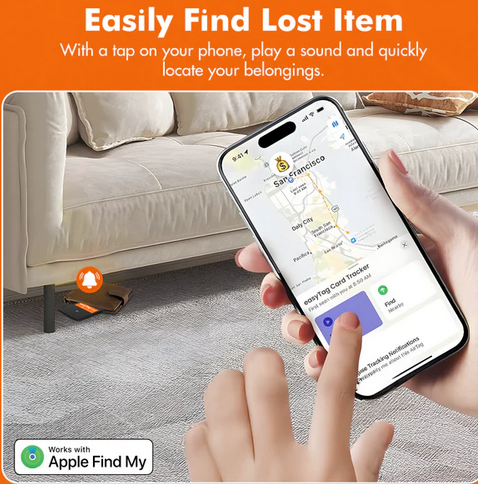
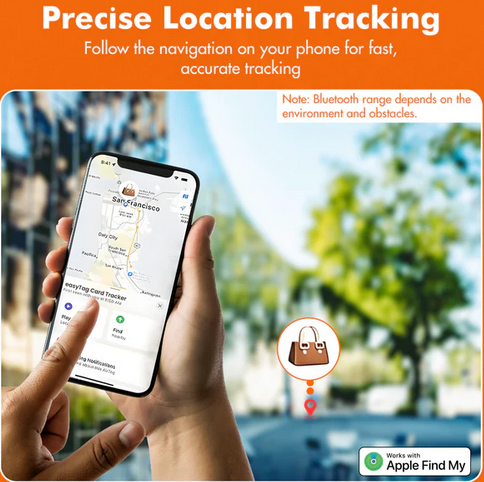
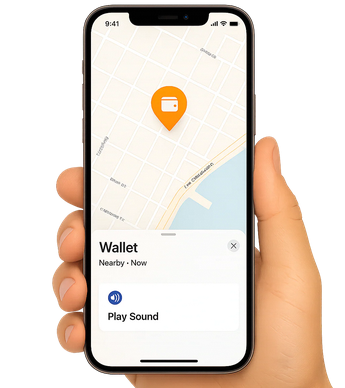
Using the Find My app, users can see the real-time location of their Apple tracking device on a map. This feature helps you locate items quickly, especially if they’re nearby.
Precision Finding
One of the standout features for Apple users is Precision Finding (available on iPhone models with a U1 chip). This feature uses ultra-wideband technology to provide more accurate, step-by-step directions to your lost item, making it easier to track down misplaced items like keys or bags.
Sound Alerts
Another useful feature is the ability to make the Apple tracking device play a sound. If your item is nearby but you can't find it, you can trigger the sound using the Find My app. This is particularly useful for locating items in your house, car, or office.
Lost Mode
If your Apple tracking device is lost and you’re unable to locate it, you can enable Lost Mode. This will notify you once the item is found by someone else’s device in the Find My network. Lost Mode also allows you to input contact information so that anyone who finds your item can reach out to you.
Privacy Settings and Security Features
Apple has always prioritized user privacy, and its tracking devices are no exception. When using an Apple tracking device, it’s essential to configure your privacy settings to ensure your personal information remains safe.
End-to-End Encryption
Apple tracking devices use end-to-end encryption to protect user data. This means that your location data and tracking information are securely encrypted, and only you can access them. Not even Apple has access to your tracking data, ensuring complete privacy.
Anonymous Location Sharing
The Find My network operates on a completely anonymous basis. When your device is lost, it can communicate with nearby Apple devices without revealing your identity or location. The information is transmitted securely and anonymously, preserving your privacy.
Privacy Alerts for Unwanted Tracking
To prevent unwanted tracking, Apple has implemented features that notify you if an unknown Apple tracking device is following you. If an unfamiliar tracking device is detected moving with you, your device will send an alert, and you can take appropriate action to disable or remove the device.
Restricting Data Collection
In the Find My app, you can manage your data collection preferences. For example, you can choose to allow or deny the sharing of location data with third-party apps. By adjusting these settings, you ensure that you have control over how your data is used.
Tips for Maintaining Privacy While Using an Apple Tracking Device
Regularly check your device settings: Make sure your privacy settings are updated, and always review your location sharing preferences to ensure you’re comfortable with how your data is being used.
Activate Lost Mode immediately: If you lose an item, activating Lost Mode is crucial as it prevents others from accessing your device’s information and ensures your privacy.
Disable tracking when not needed: If you no longer need a tracking device or wish to stop tracking, remove the device from your Apple ID account to ensure that it doesn’t continue sending location data.
Conclusion: Why EasyTag Can Help Enhance Your Tracking Experience
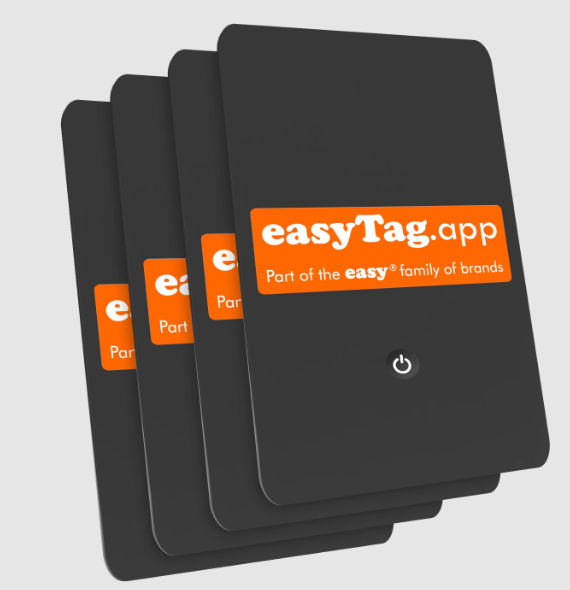
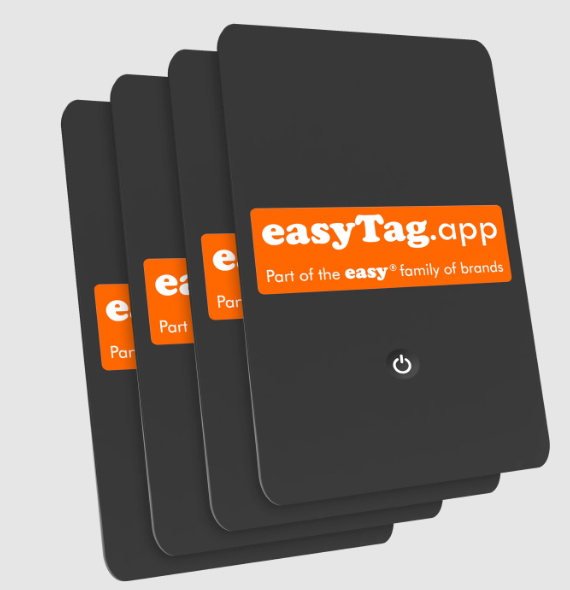
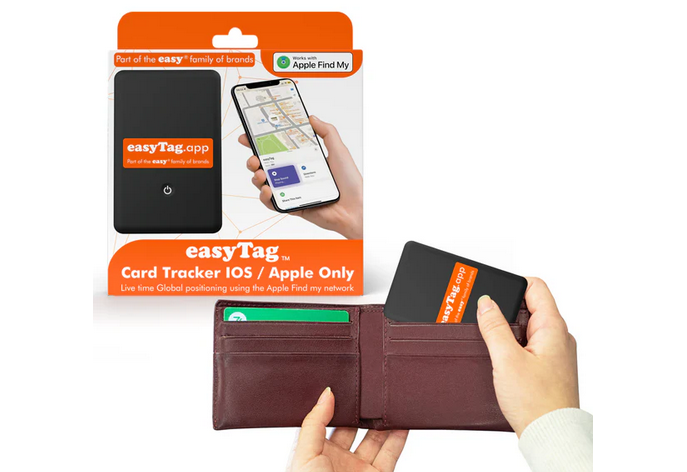
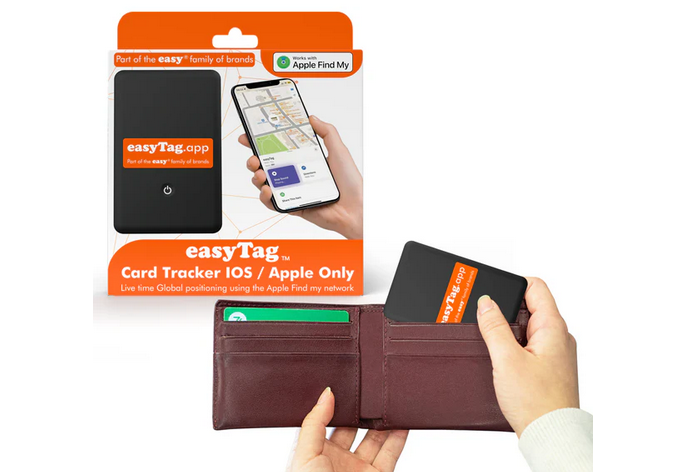
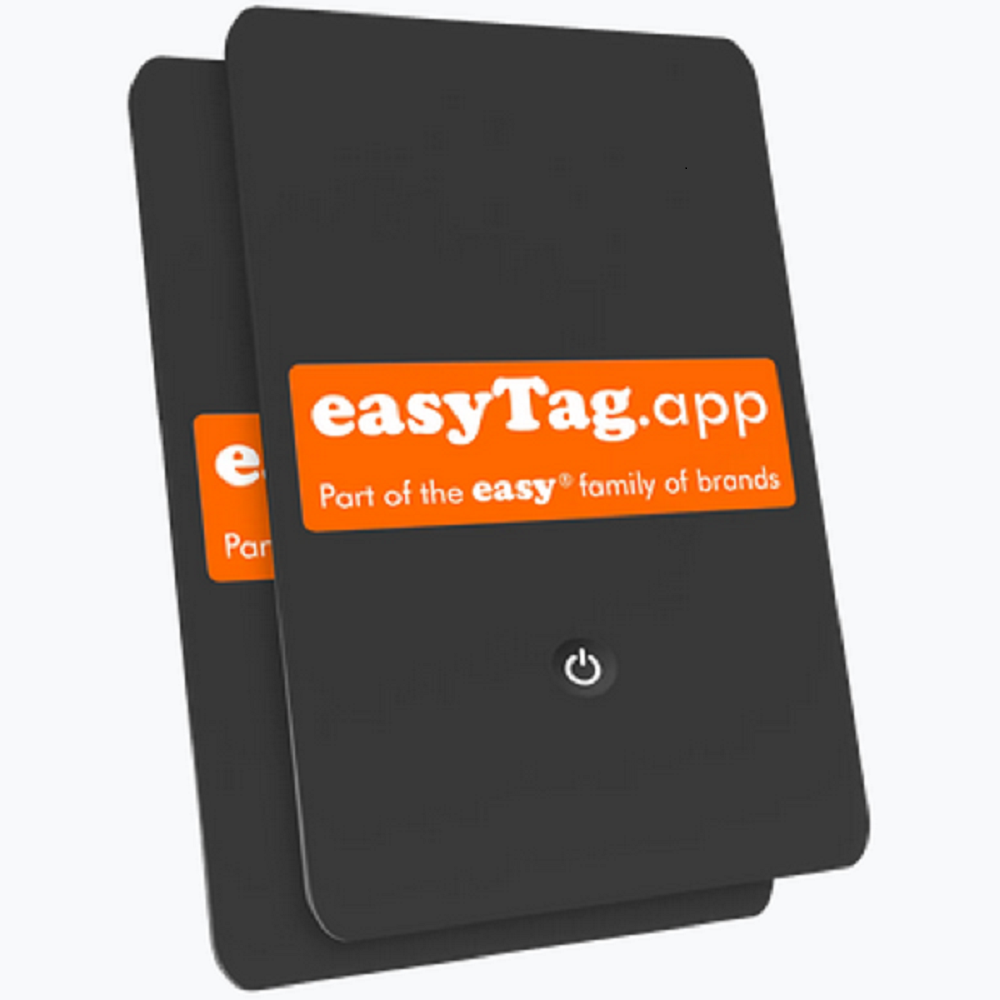
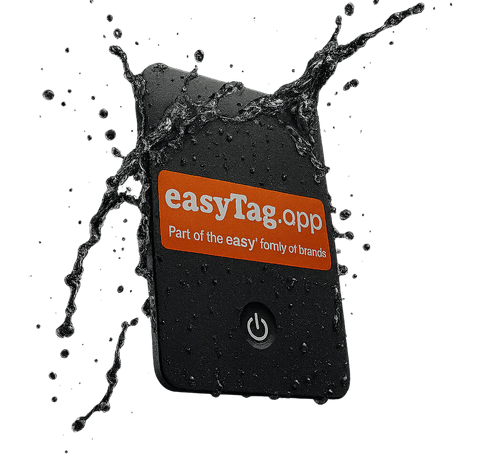
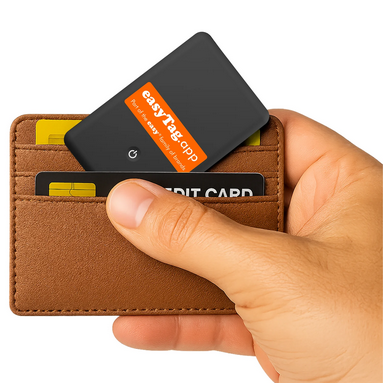
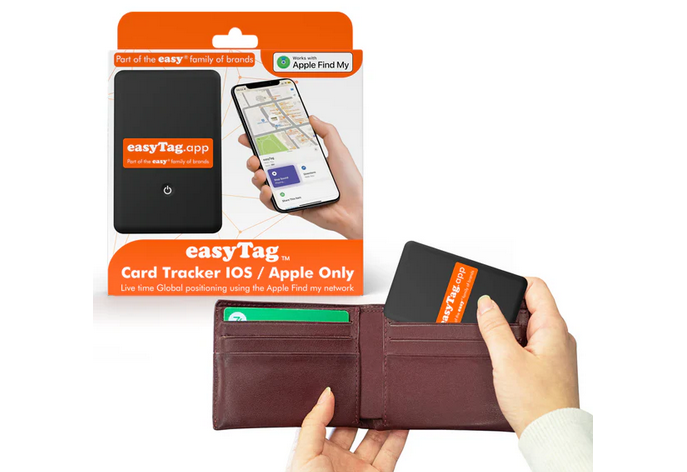
Apple tracking devices are a fantastic solution for keeping track of your personal belongings while ensuring your privacy and security. With straightforward setup instructions, seamless integration with the Apple ecosystem, and robust privacy settings, these devices offer an excellent way to safeguard your items. However, if you’re looking for a simplified and intuitive way to manage your tracking needs, services like easyTag offer a practical solution. Whether you’re tracking your devices or managing multiple items, easyTag can help streamline your experience with user-friendly features designed to enhance both convenience and security.
When it comes to safeguarding your items, easyTag ensures you have the tools you need for peace of mind.


Write a comment ...